
The Script Generator creates standard Kafka command-line script files from the Kafka objects visible in Offset Explorer. It can create read-only diagnostic scripts as well as write and destructive scripts for selected Topics, Consumer groups, Brokers, ACLs, and quotas.
The tool generates script files only. It does not run the generated Kafka CLI commands. Review generated files before running them, especially files containing write or destructive commands.
The Script Generator uses a four-page wizard.
Open the full wizard from the Tools menu by selecting "Generate CLI Scripts...". The wizard opens on the Objects page.
The wizard can also be opened from the right-click menu in the Browser for supported Kafka object types, and from the right-click menus in supported object lists. When opened from a context menu, the wizard still opens on the Objects page, but the related connection, tab, and objects are preselected so they can be reviewed or changed before continuing.
| Location | Context |
|---|---|
| Browser server connection node and server list | Preselects the Cluster row. |
| Topic tree and Topic list | Preselects one or more Topics. |
| Consumer list | Preselects one or more Consumer groups. |
| Broker list | Preselects one or more Brokers. |
| ACL list | Preselects one or more ACLs. |
| Quota list | Preselects one or more quota entities when the Kafka version supports quotas. |
Select a connection from the Cluster dropdown. The first connected cluster is selected by default; after using the wizard, the last selected connection is remembered. The dropdown shows the same connected or disconnected icon used in the browser tree.
If the selected connection is not connected, click Connect. The object tabs show "Not Connected" until the connection is available. Changing the Cluster dropdown updates the object panels and loads objects when the newly selected cluster is already connected.
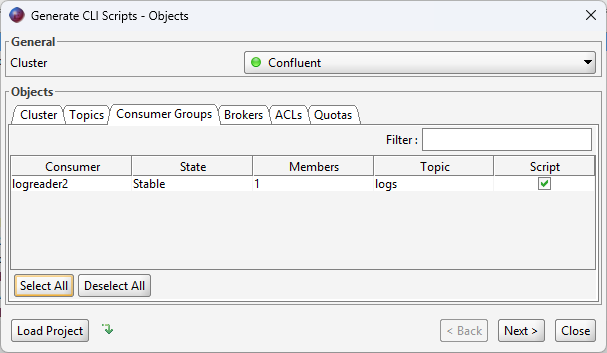
Object tabs are lazy-loaded. Only the active tab is loaded immediately. Each tab contains a grid with object details and a Script checkbox at the end of the row. Use the quick filter to find objects, select one or more rows, right-click to Select or Deselect, or use Select All and Deselect All below the grid.
The left side lists the selected object categories. The right side shows the command sections available for the selected category. Only categories selected on the Objects page are shown. Command options that require a newer Kafka version are hidden for older connections.
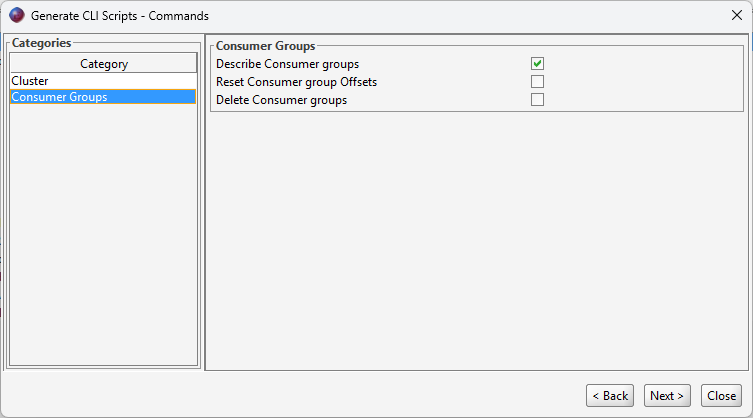
| Section | Command | Kafka CLI | Default |
|---|---|---|---|
| List Commands | Topics | kafka-topics --list | Selected |
| List Commands | Consumer groups | kafka-consumer-groups --list | Not selected |
| List Commands | ACLs | kafka-acls --list | Not selected |
| List Commands | Broker configs | kafka-configs --describe --entity-type brokers | Not selected |
| List Commands | Topic configs | kafka-configs --describe --entity-type topics | Not selected |
| List Commands | User configs | kafka-configs --describe --entity-type users | Not selected |
| List Commands | Client configs | kafka-configs --describe --entity-type clients | Not selected |
| List Commands | IP configs | kafka-configs --describe --entity-type ips | Not selected |
| List Commands | Delegation tokens | kafka-delegation-tokens --describe | Not selected |
| List Commands | Log directories | kafka-log-dirs --describe | Not selected |
| List Commands | Cluster metadata | kafka-cluster cluster-id | Not selected |
| List Commands | Metadata quorum | kafka-metadata-quorum describe --status | Not selected |
| Diagnostics | Describe Broker API versions | kafka-broker-api-versions | Selected |
| Diagnostics | Describe features | kafka-features describe | Selected |
| Category | Commands |
|---|---|
| Topics | Describe Topic, Create Topic, Delete Topic, Describe Topic configs, Console Consumer, Console Producer. |
| Consumers | Describe Consumer group, Reset Offsets, Delete Consumer group. |
| Brokers | Describe Broker API versions, Describe log directories. |
| ACLs | List matching ACL, Remove ACL. |
| Quotas | Describe quota entity, Add or update quota, Delete quota. |
Destructive commands, such as deleting Topics, deleting Consumer groups, resetting Offsets, removing ACLs, and deleting quota settings, can be generated but are commented out by default when the safety option is enabled.
Offset Explorer uses the selected connection's Kafka version to hide command options that are not available for that version. For example, quota scripting is available only when the selected connection is configured for a Kafka version that supports quotas, and newer commands such as metadata quorum and feature-level descriptions are hidden for older versions.
The Options page contains General and Security sections.
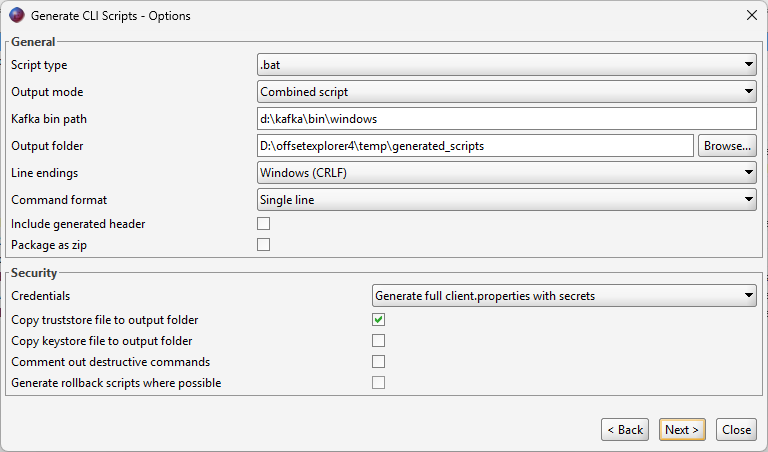
| Option | Description |
|---|---|
| Script Type | Generates Unix shell scripts, Windows batch scripts, or both. The default is based on the operating system. |
| Output Mode | Creates one file per command, one file per selected object, or one combined script file. |
| Kafka Bin Path | The folder or variable used before each Kafka CLI executable, for example $KAFKA_HOME/bin. |
| Output Folder | The folder where generated files are written. The folder must already exist. |
| Line Endings | Uses Windows (CRLF) or Unix (LF) line endings. The default is based on the operating system. |
| .sh Execute Permission | Controls which POSIX execute bits are set on generated .sh files: none, user, user and group, or all. This option is available only when running Offset Explorer on macOS or Linux and does not apply when packaging scripts into a ZIP file. |
| Command Format | Uses multi-line commands with continuation characters or single-line commands. |
| Include Header | Adds a generated-by timestamp and cluster name to each script. |
| Package as zip | Writes generated files into kafka-cli-scripts.zip instead of individual files. |
| Option | Description |
|---|---|
| Reference existing client.properties | Adds --command-config pointing to client.properties, but does not generate that file. For console consumer and producer scripts targeting Kafka versions older than 4.2.0, the generator uses --consumer.config or --producer.config. |
| Do not include credentials | Does not add a client.properties option to generated commands, except for commands such as delegation tokens where Kafka requires --command-config. |
| Generate sanitized client.properties | Creates client.properties with non-secret connection settings and placeholder comments for secrets. |
| Generate full client.properties with secrets | Creates client.properties including available secrets from the saved connection. |
| Use environment variables for secrets | Creates client.properties using environment variable placeholders for passwords and JAAS config. |
| Copy truststore file to output folder | Copies the connection truststore file and writes its file name into client.properties. |
| Copy keystore file to output folder | Copies the connection keystore file and writes its file name into client.properties. |
| Comment out destructive commands | Comments out generated destructive commands so they must be manually enabled before running. |
For SSL and SASL_SSL connections, truststore and keystore locations are passed through
client.properties. If the copy options are unchecked, the generated file references
the original configured locations. If copy options are checked, the generated file references the
copied file names in the output folder.
The Review page shows generated files. The grid at the top contains one row per file, including the file name, type, command count, and risk level. Selecting a row shows the file contents below it. Files have already been written to the output folder or ZIP file when this page is shown.
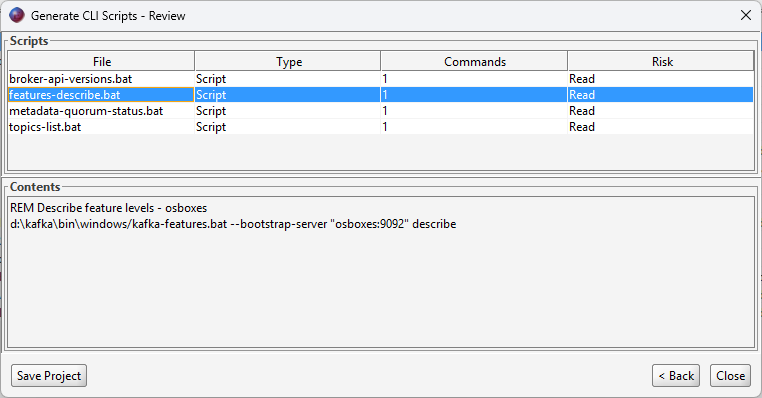
Load Project and Recent Projects are available on the Objects page. Save Project is available on the Review page after scripts have been generated.
A project JSON file contains the saved connection reference, selected objects, command selections, and output/security options. If the original connection id is no longer available, Offset Explorer tries to find a saved connection with the same name.
A saved Script Generator project can be run from the Offset Explorer command-line tool. The command uses the settings in the JSON file and writes generated files to the configured output folder.
commandline.exe -scriptGenerator "C:\Offset Explorer Projects\script-generator-settings.json"
See the Command-Line Tool documentation for command-line usage details.