
Offset Explorer can connect to ksqlDB servers, browse ksqlDB objects, run SQL statements, inspect results, and execute ksqlDB commands from the command line.
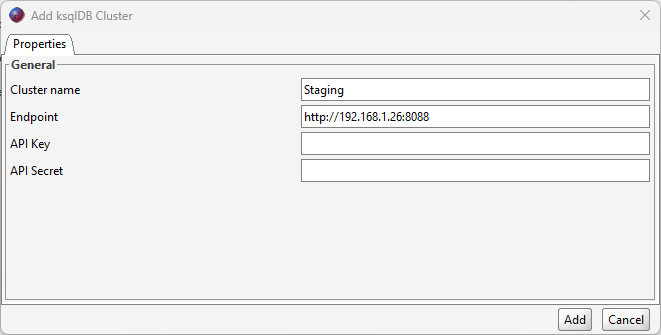
To add a ksqlDB server, open the ksqlDB area and choose the add connection action. Enter a connection name and the ksqlDB REST endpoint URL. For secured ksqlDB servers, enter the key and secret used for basic authentication.
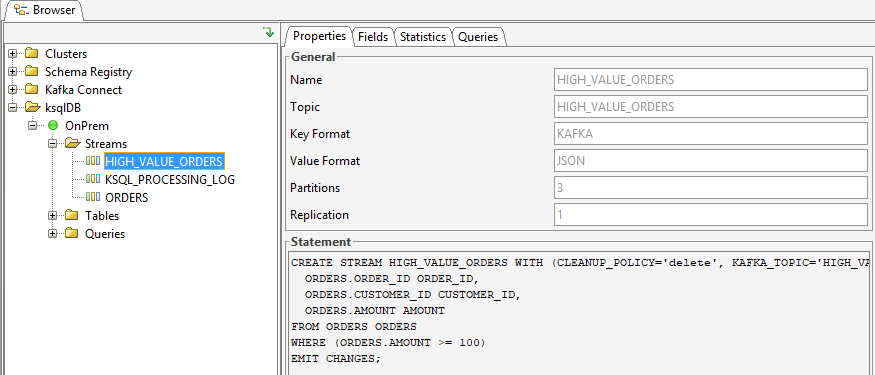
The ksqlDB browser lists streams, tables, queries, and topics used by the ksqlDB server. Streams and tables include the backing Topic, key format, value format, and schema fields. Query details include state, statement text, sources, sinks, topology, and execution plan details returned by ksqlDB.
The SQL editor supports ksqlDB statements such as SELECT, INSERT,
CREATE, SHOW, DESCRIBE, DROP,
EXPLAIN, PAUSE, RESUME, TERMINATE, and
PRINT.
A streaming query is a query that remains open and continuously returns rows as new events
arrive, such as a ksqlDB SELECT ... EMIT CHANGES statement.
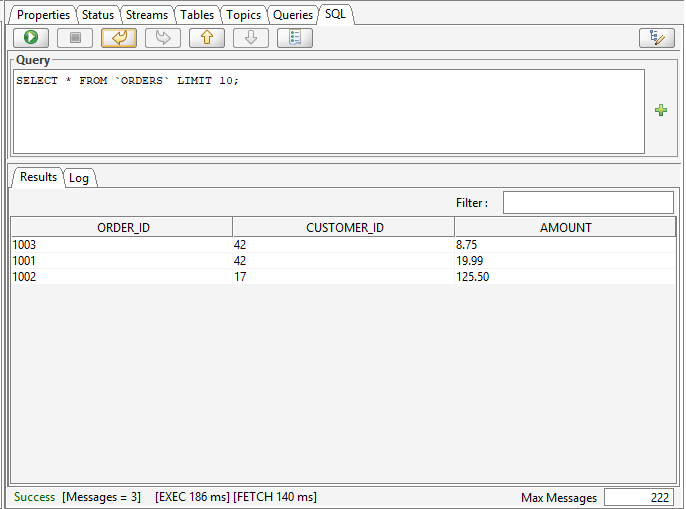
Use the toolbar to run, stop, undo, redo, move through query history, open query history, and open query settings. The editor runs the selected statement when text is selected. If multiple statements are selected, it runs the first selected statement. Without a selection, it runs the statement under the caret.
The following keyboard shortcuts are available from the SQL editor.
| Action | Shortcut |
|---|---|
| Run query | Ctrl+Enter on Windows/Linux, Command+Enter on macOS |
| Stop query | Esc |
| Previous query | Ctrl+Up on Windows/Linux, Command+Up on macOS |
| Next query | Ctrl+Down on Windows/Linux, Command+Down on macOS |
| Query history | Ctrl+Page Up on Windows/Linux, Command+Page Up on macOS |
| Undo and redo | Standard operating system shortcuts |
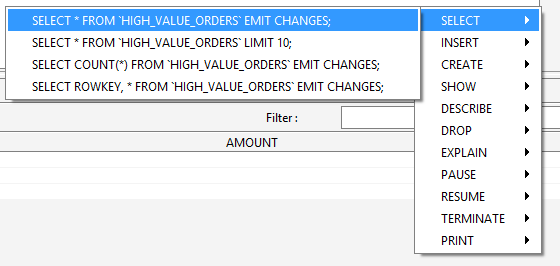
The plus button beside the query area opens a sample-query menu. Samples are grouped by statement category and use existing streams, tables, and topics where available. Selecting a sample inserts it at the caret position.
The SQL editor settings dialog currently provides auto.offset.reset with
latest and earliest values. The setting is saved with the ksqlDB
connection and passed to ksqlDB when running queries.
This setting controls where a streaming query starts reading when ksqlDB does not already
have an offset for that query. Use latest to read only new rows produced after
the query starts. Use earliest to read from the beginning of the source Topic
where ksqlDB can replay the data.
Query results are shown in a sortable grid with quick filtering. Streaming
SELECT ... EMIT CHANGES and PRINT statements append rows as they
arrive while the query is running.
The Log tab records each executed statement with timestamps, success messages, error messages, execution time, fetch time, and retrieved row counts. If a statement does not return rows, the Log tab is shown by default.
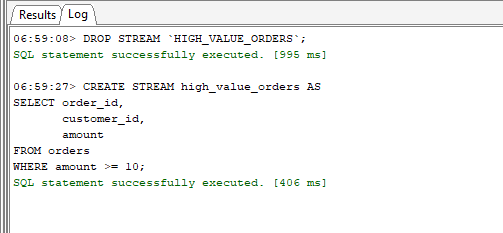
The status bar shows a concise success or error state. When timing information is available, execution and fetch times are shown separately. The maximum rows field on the status bar controls the row limit for SQL results and is persisted with the ksqlDB connection.
Executed statements are saved in a separate query history file. History stores the ksqlDB connection, the number of times a statement was executed, the last execution time, and the statement text. Up to 300 history entries are retained.
Use the previous and next toolbar buttons to move through history directly in the editor. The Query History dialog shows the full history with a quick filter, a preview area for the selected statement, and a Select button that copies the selected statement back into the query editor.
The command-line tool includes commands for managing ksqlDB connections, listing ksqlDB objects, describing objects, and running queries. See the ksqlDB command documentation for the full command syntax.
commandline.exe -runKsqlQuery -ksql production-ksql -query "SELECT * FROM orders EMIT CHANGES;" -maxRows 100 --auto.offset.reset earliest
Command-line queries accept exactly one SQL statement. A missing semicolon is added automatically. For continuous statements, rows are printed as they arrive.