
In order to view data in your Kafka cluster, you must first create a connection to it. This can be done using the Add Cluster toolbar button or the Add New Connection menu item in the File menu. In the Add Cluster dialog, you can provide the following values under the General section:
In the Broker Security section, you can choose between different security types. If you are connecting to a Kafka cluster that is configured for plaintext security, typically in test environments only, you can choose Plaintext as the security type. If your cluster is configured for SASL (plaintext or SSL), you can choose SASL as the security type. If your cluster is configured for SSL, you can choose SSL as the security type. Below, you can find instructions for each security type.
If your cluster is configured for plaintext security, you do not need to configure any additional security attributes. You can click Test to verify that your connection is working properly, or click Add to add the server connection without testing it first.
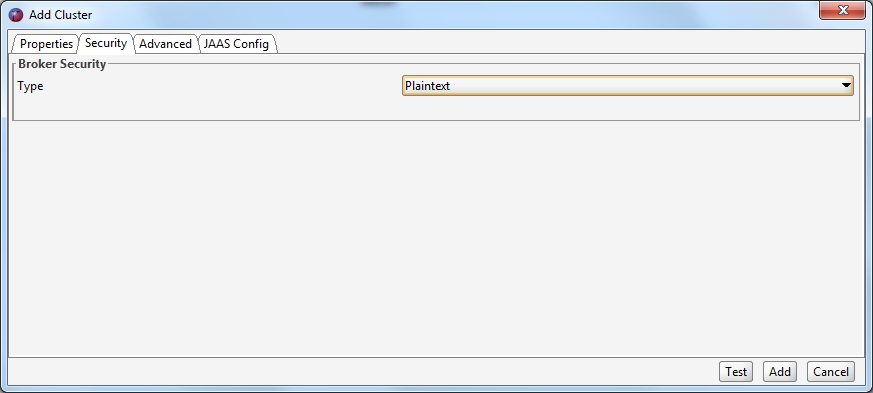
If your cluster is configured for SASL (plaintext or SSL), you must either specify the JAAS config in the UI or pass your JAAS config file to Offset Explorer when you start it. The exact contents of the JAAS file depend on the configuration of your cluster, so please refer to the Kafka documentation.
On Windows, you need to start Offset Explorer as follows:
On Linux, you need to start Offset Explorer as follows:
On macOS, you need to start Offset Explorer using offsetexplorer.sh located in the following folder:
Before that, you must configure the provided client_jaas.conf file to match your Kafka cluster configuration.
If you do not pass the JAAS config file at Offset Explorer startup, you must specify it under the JAAS Config tab for each connection.
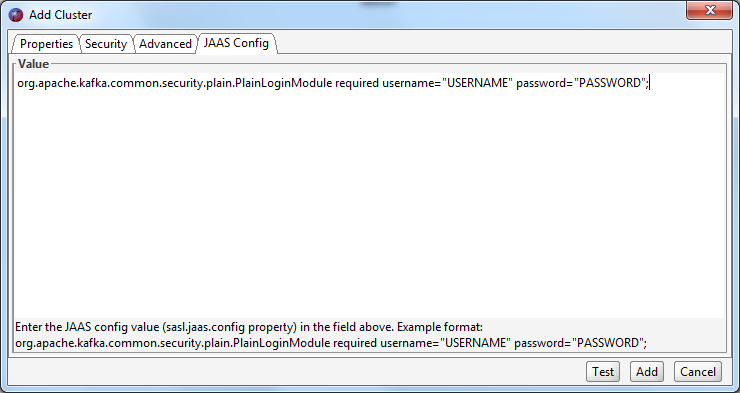
You can use the following JAAS config as a starting point:
org.apache.kafka.common.security.plain.PlainLoginModule required
username="USERNAME"
password="PASSWORD";
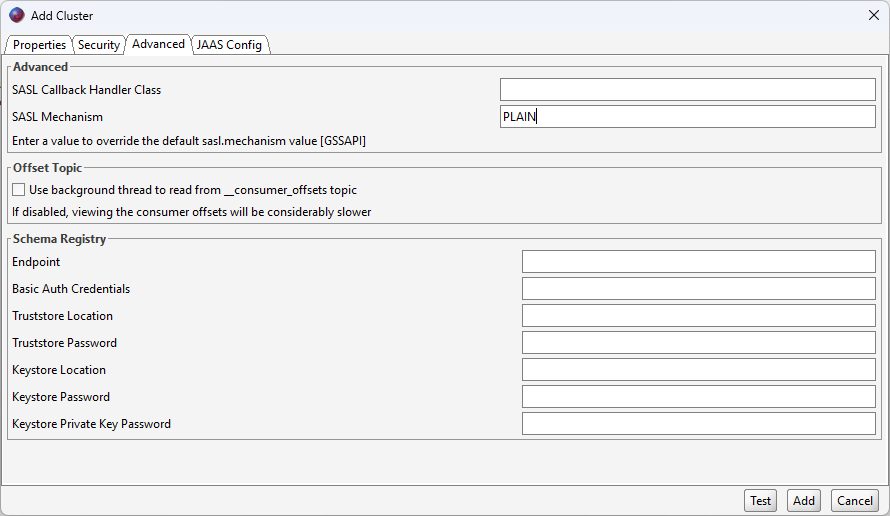
If you are using SASL Plaintext, you typically must change the sasl.mechanism client property to PLAIN. This property can be entered in the 'SASL Mechanism' text field under the 'SASL Configuration' section.
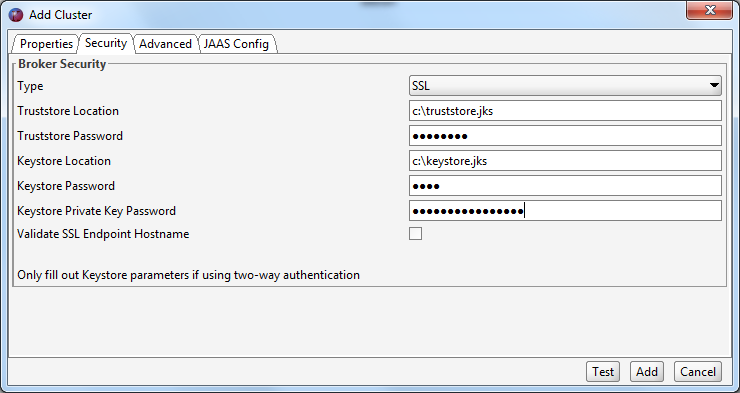
If your Kafka cluster is configured to use SSL, you may need to set various SSL configuration parameters under the Broker Security section. Unless your Kafka brokers are using a server certificate issued by a public CA, you need to point to a local truststore that contains the self-signed root certificate that signed your brokers' certificate. You also need to enter the password for this truststore.
If the SAN(s) in your server certificate do not match the actual hostname of the brokers you are connecting to, you will receive an SSL error ("No subject alternative DNS name matching xxx found") when you try to connect. You can avoid this by unchecking the 'Validate SSL endpoint hostname' checkbox in the 'Broker security' section. This will set the ssl.endpoint.identification.algorithm client property to null.
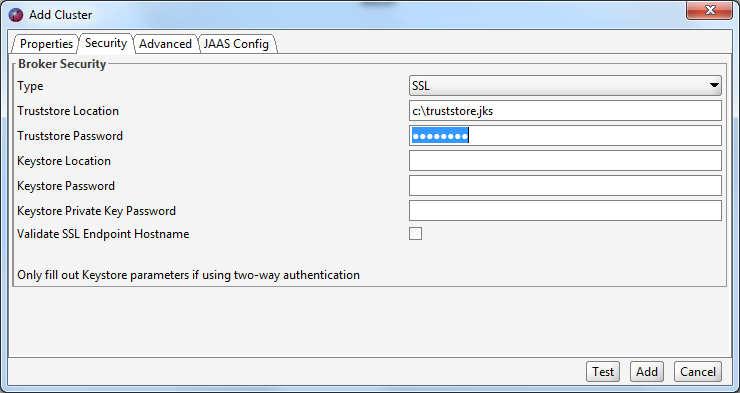
If your Kafka cluster requires a client certificate (two-way authentication), you also need to configure your keystore attributes. The keystore contains the private key that you use to authenticate to your Kafka brokers. You also need to configure a password for the keystore, as well as a password for the private key in the keystore.
In order to connect Offset Explorer to an Azure Event Hub, you must first make sure that "Kafka Surfaces" is enabled. This can be confirmed by navigating to the Event Hubs namespace page and verifying that it is enabled.

Once this has been confirmed, navigate to the "Shared access policies" menu item in the Event Hubs namespace. You can either use the RootManageSharedAccessKey, or make your own policy. Once you have chosen the policy, click it and copy the connection string–primary key value.
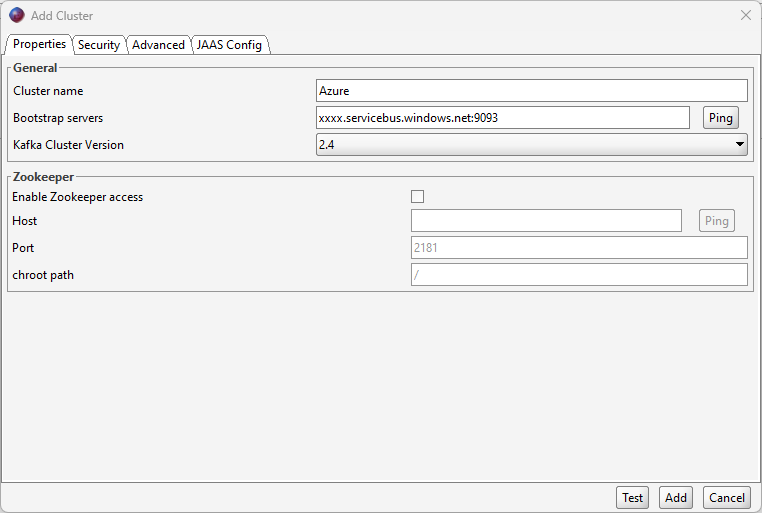
Once the value has been copied, you can open Offset Explorer and add a new connection. In the Properties tab, choose a name and version for the cluster. Enter the bootstrap server or servers that match your configuration. Make sure to use port 9093, as it differs from the standard Kafka port 9092.
In the Broker Security section, change the security type from plaintext to SASL SSL.
In the SASL Configuration section, enter PLAIN into the SASL Mechanism field.
For the JAAS Config tab, you will need to enter the following information (note that the password is the connection string–primary key value that you copied earlier):
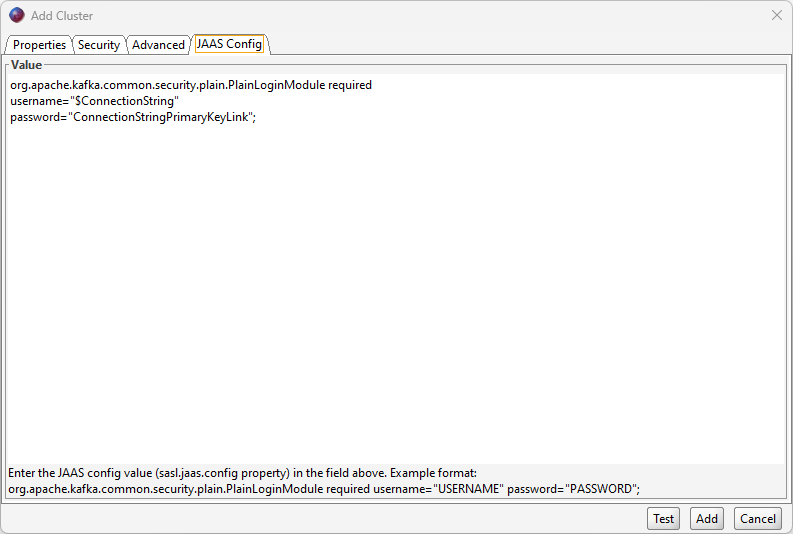
You can use the following JAAS config as a starting point:
org.apache.kafka.common.security.plain.PlainLoginModule required
username="$ConnectionString"
password="Endpoint=sb://xxx.servicebus.windows.net/;SharedAccessKeyName=MyKeyName;SharedAccessKey=MyKey";
Once all of this information has been entered, you can click "Add" to add the connection.
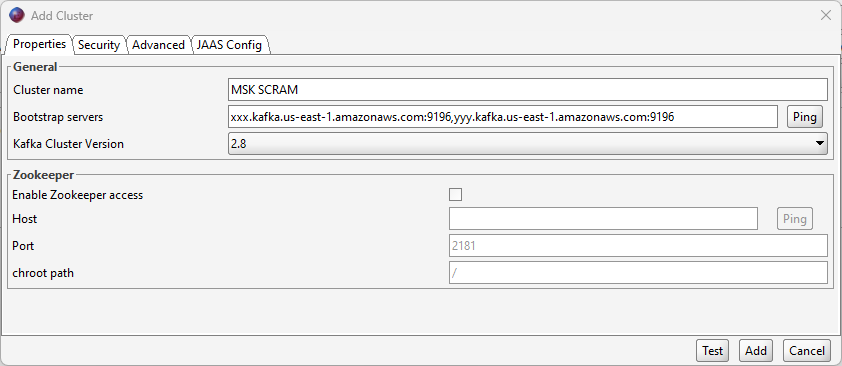
A quick method to connect to your Amazon MSK cluster is to configure your MSK security settings to allow SASL/SCRAM authentication. In order to connect Offset Explorer to your Amazon MSK environment using SASL/SCRAM authentication, you will need to add the following settings when creating your cluster in Offset Explorer:
Properties tab: Enter the bootstrap servers that match your MSK configuration. Select the version number that matches your Amazon MSK cluster.
In the Broker Security section, change the security type from plaintext to SASL SSL.
In the SASL Configuration section, enter the following into the SASL Mechanism field: SCRAM-SHA-512
JAAS Config tab: Copy the following, replacing "username" with the correct username and "password" with the correct password. These credentials are stored in the AWS Secrets Manager secret that is associated with your MSK SASL/SCRAM authentication.
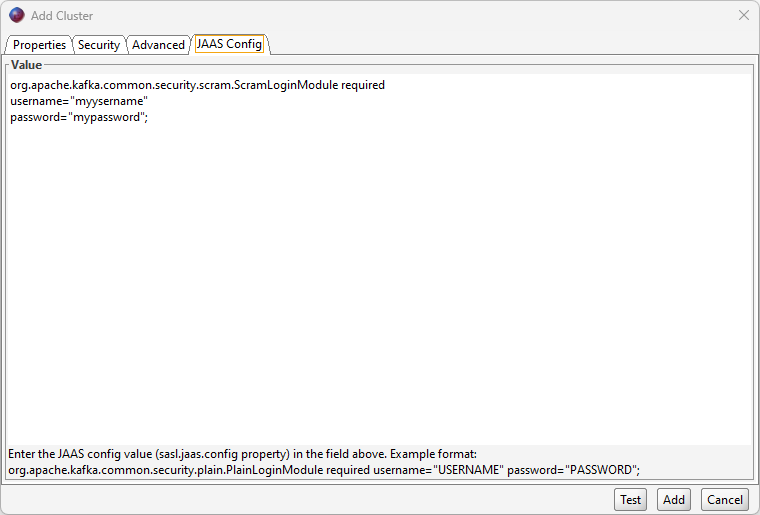
You can use the following JAAS config as a starting point:
org.apache.kafka.common.security.scram.ScramLoginModule required
username="username"
password="password";
Once these settings have been entered for the cluster, you can add the server connection by clicking "Add" and then connect.
In order to connect Offset Explorer to your Amazon MSK environment using IAM authentication, you will need to add the following settings when creating your cluster in Offset Explorer.
Properties tab: Enter the bootstrap servers that match your MSK configuration. You can find these values in the AWS console. Select the version number that matches your Amazon MSK cluster.
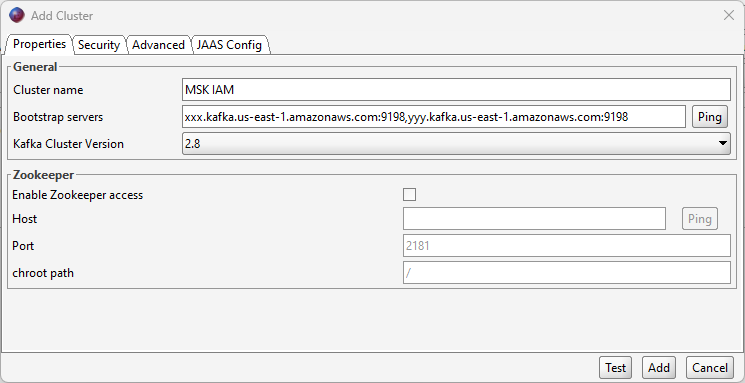
In the Broker Security section, change the security type from plaintext to SASL SSL.
Enter the following values in the SASL Configuration section:
SASL Mechanism: AWS_MSK_IAM
SASL Callback Handler Class: software.amazon.msk.auth.iam.IAMClientCallbackHandler
JAAS Config tab: Use the following value in the JAAS config field.
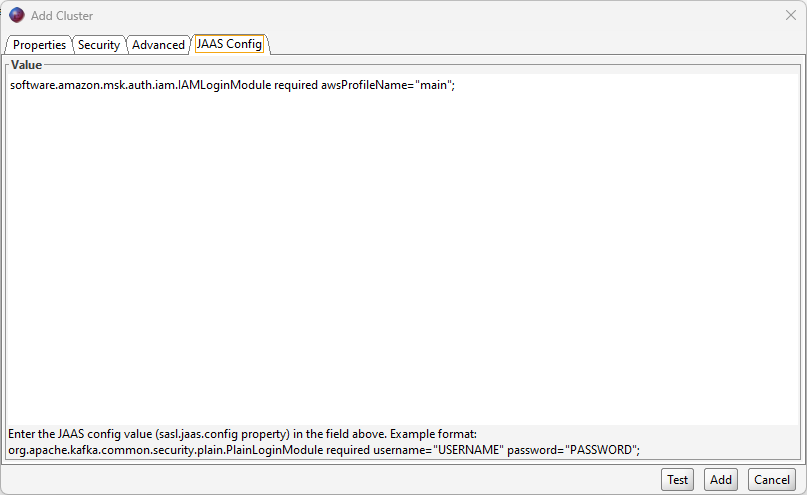
You can use the following JAAS config as a starting point:
software.amazon.msk.auth.iam.IAMLoginModule required awsProfileName="main";Once these settings have been entered for the cluster, you can add the server connection by clicking "Add" and then connect.
In order to connect Offset Explorer to a Confluent Cloud environment, you will need to add the following settings when creating your cluster in Offset Explorer:
Properties tab: Confirm that the bootstrap servers are entered correctly.
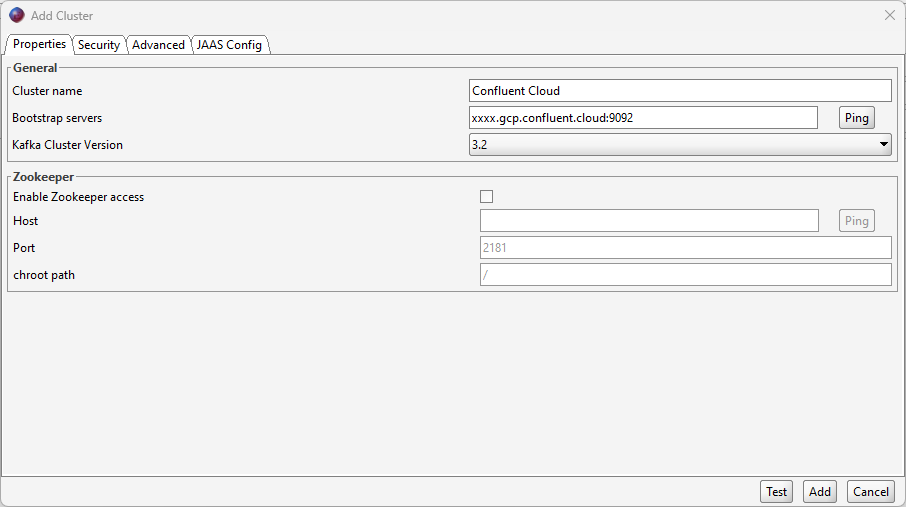
In the Broker Security section, change the security type from plaintext to SASL SSL.
In the SASL Configuration section, enter PLAIN into the SASL Mechanism field.
JAAS Config tab: Copy the following, replacing "myapikey" and "myapisecret" with the correct values.
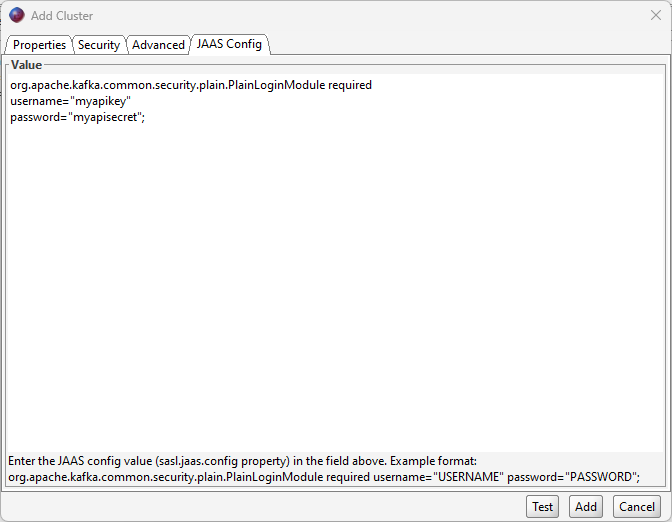
You can use the following JAAS config as a starting point:
org.apache.kafka.common.security.plain.PlainLoginModule required
username="myapikey"
password="myapisecret";
Once these settings have been entered for the cluster, you can add the connection by clicking "Add" and then connect.
In order to connect Offset Explorer to a Kafka cluster using OAuth/OIDC authentication, you will need to add the following settings when creating your cluster in Offset Explorer. The exact values depend on your Kafka provider and identity provider.
Properties tab: Enter the bootstrap servers that match your cluster configuration. Select the version number that matches your Kafka cluster.
In the Broker Security section, change the security type from plaintext to SASL SSL.
Enter the following values in the SASL Configuration section:
SASL Mechanism: OAUTHBEARER
SASL Callback Handler Class: org.apache.kafka.common.security.oauthbearer.OAuthBearerLoginCallbackHandler
SASL OAuth/OIDC Identity Provider URL: the token endpoint URL for your identity provider

JAAS Config tab: Copy the following, replacing "myClientId", "myClientSecret", and any provider-specific values with the correct values for your OAuth/OIDC application. The extension_logicalCluster value is applicable to Confluent Cloud; specify the Confluent Cloud cluster ID there. The scope value is only required when your Kafka provider requires it.
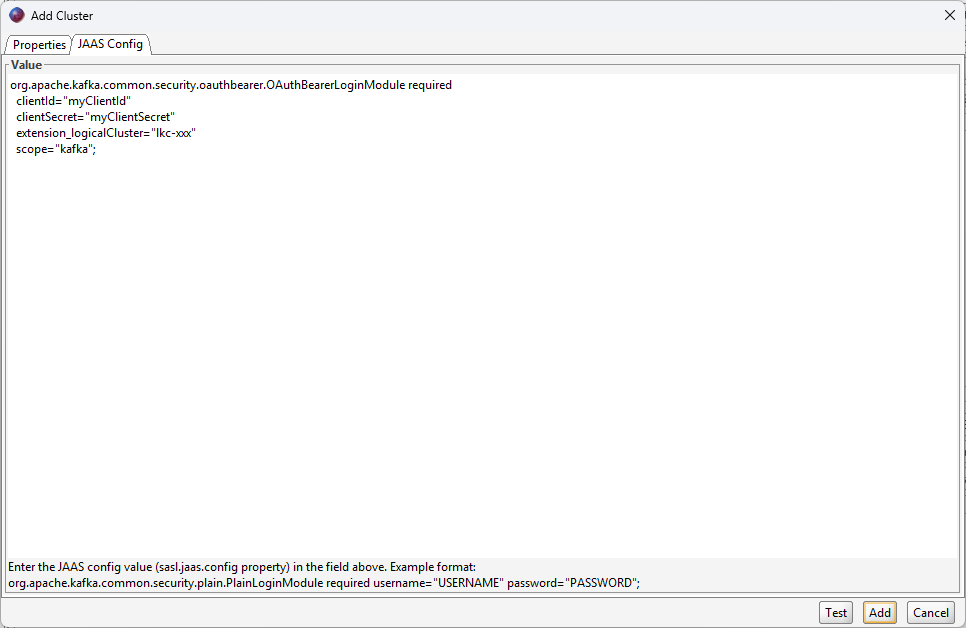
You can use the following JAAS config as a starting point:
org.apache.kafka.common.security.oauthbearer.OAuthBearerLoginModule required
clientId="myClientId"
clientSecret="myClientSecret"
extension_logicalCluster="lkc-xxx"
scope="kafka";
Once these settings have been entered for the cluster, you can add the server connection by clicking "Add" and then connect.